Let the tool hear a song and it estimates the chords, key and BPM, then makes a guitar chord sheet and TAB. A synthesized guitar plays the TAB over the original song, so you can check it by ear and practise along.
All audio is processed inside your browser and never sent anywhere. Songs you open are kept only in this browser, so you can reopen them later. No sign-up is needed.
Loading a song
There are three ways to load a song. If you have the audio file, opening it is the most accurate. Every way works for songs up to 10 minutes long.
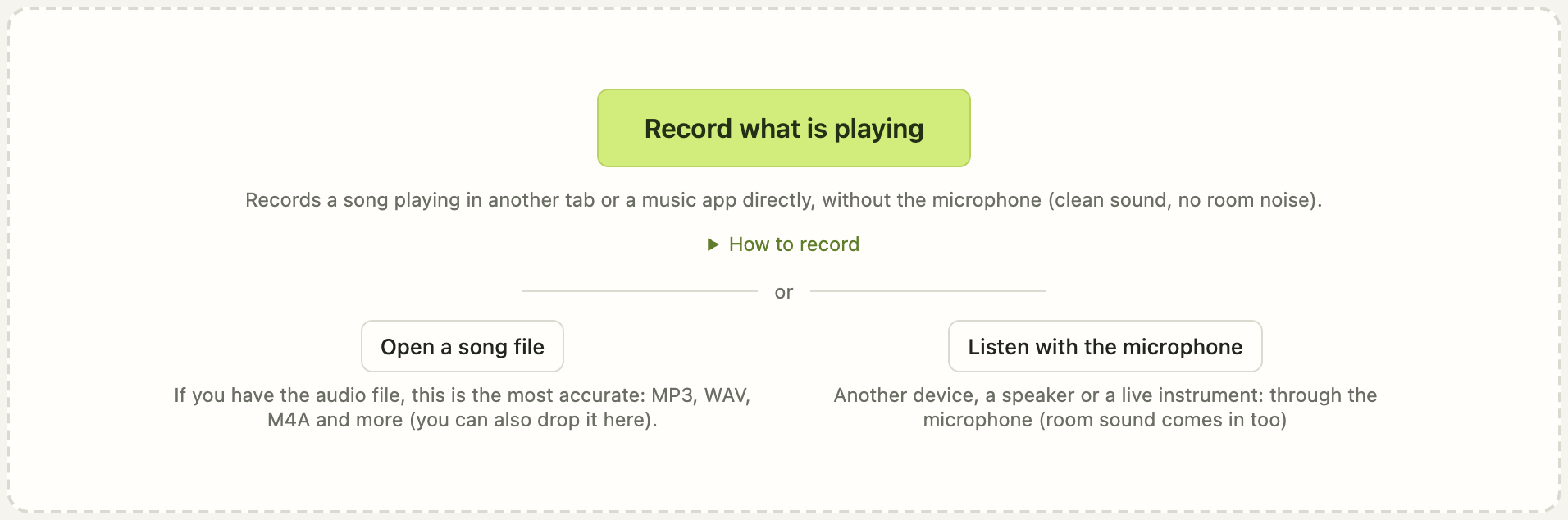
Open a song file
Open an audio file such as MP3, WAV or M4A. On a computer you can also drag the file onto the page. Songs in music apps and streaming services can’t be opened as files; use one of the two ways below instead.
Record what is playing (Chrome and Edge on a computer)
Records a song playing in another tab or in a music app directly, without the microphone. No room noise gets in, so the sound is cleaner than with a microphone.
- If the song plays in the browser, pick that tab in the sharing dialog and turn on “Also share tab audio”.
- If it plays in a music app, pick “Entire screen” and turn on “Also share system audio”.
- To keep the shared tab silent while recording, tick “Mute the shared tab while recording”.
Please stay within your streaming service’s terms of use. Copy-protected audio can’t be recorded (the recording comes out silent), and this tool does not bypass copy protection.
Listen with the microphone
Works for a song playing anywhere: another device, a speaker, a live instrument. On a phone, play the song on another device, such as a computer, and let the phone’s microphone listen. Room sound is recorded too, so a quiet room and a fairly loud volume work best. The microphone can’t hear audio playing through earphones.
When the recording is done, choose the range to analyse and press “Analyze this range”. Ten seconds is enough to analyse, but recording the whole song makes the key and tempo estimates steadier. Recording stops on its own after 10 minutes.
While recording, you can play a quiz guessing the chord shapes on screen, and while the first pass runs, a little ear-training game. Recording and analysis carry on whether you play or not.
First pass and “Improve accuracy”
The analysis runs in two steps.
The first pass listens to the song as it is and estimates the beats, bars and chords. How long it takes depends on the song and your computer; for a 4–5 minute song, roughly ten seconds to a minute.
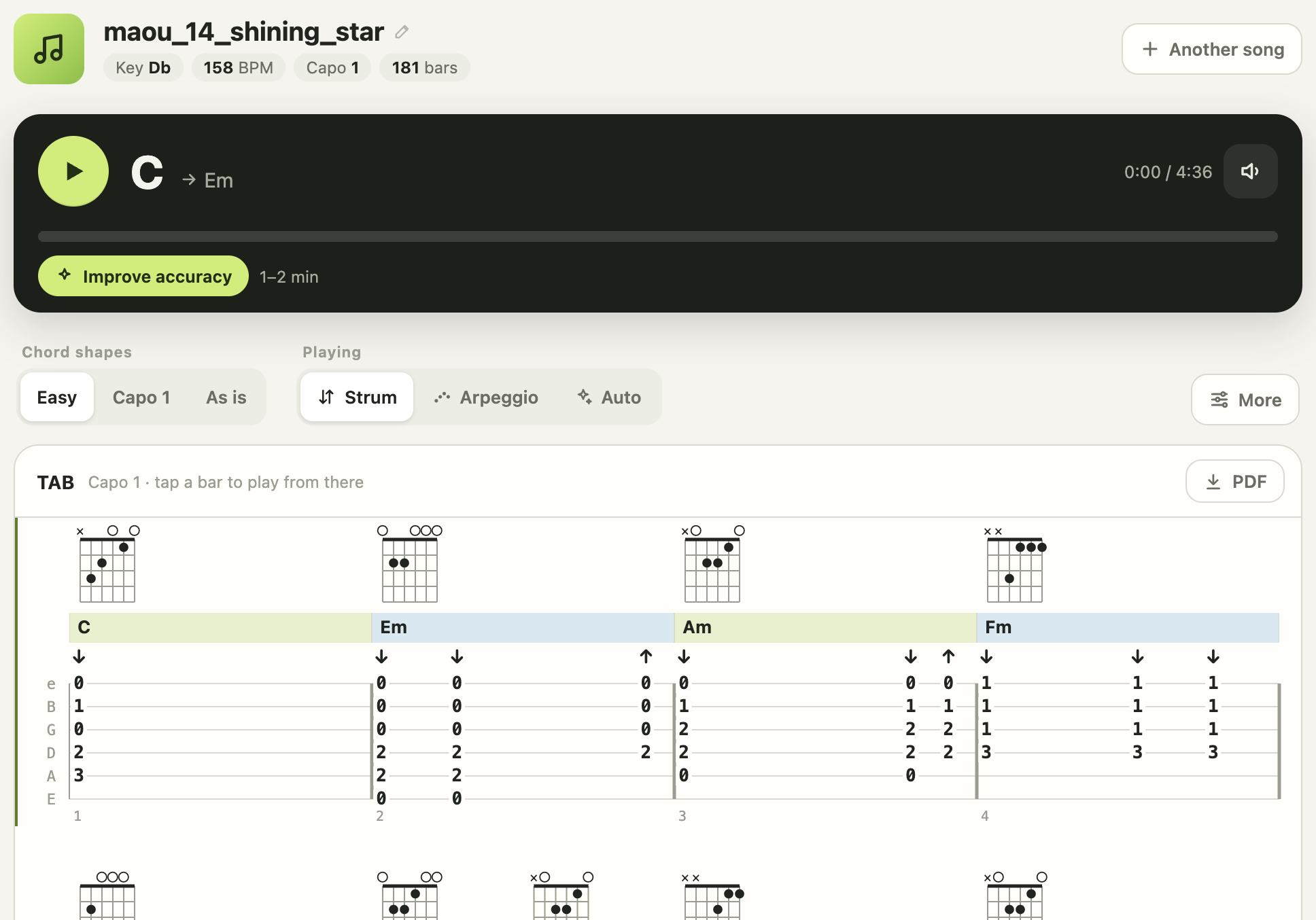
Press “✦ Improve accuracy” under the player bar (computers only) to run the detailed analysis. It first separates the song into vocals, drums, bass and other instruments, then estimates the chords and the strum timing again. The sung melody pulls the chords off less, so sung passages often come out more accurate, though a little of the voice can remain in the separated backing. A 4–5-minute song took about 2 minutes on a MacBook Air; slower computers take longer. The first time, the model (about 70 MB) is downloaded.
- While it runs, the same line shows a progress meter, “Improving accuracy”.
- The detailed analysis works outward from where you are playing. Tap a bar in the TAB to play from there and have that area analysed first.
- Faded bars still show the first-pass chords.
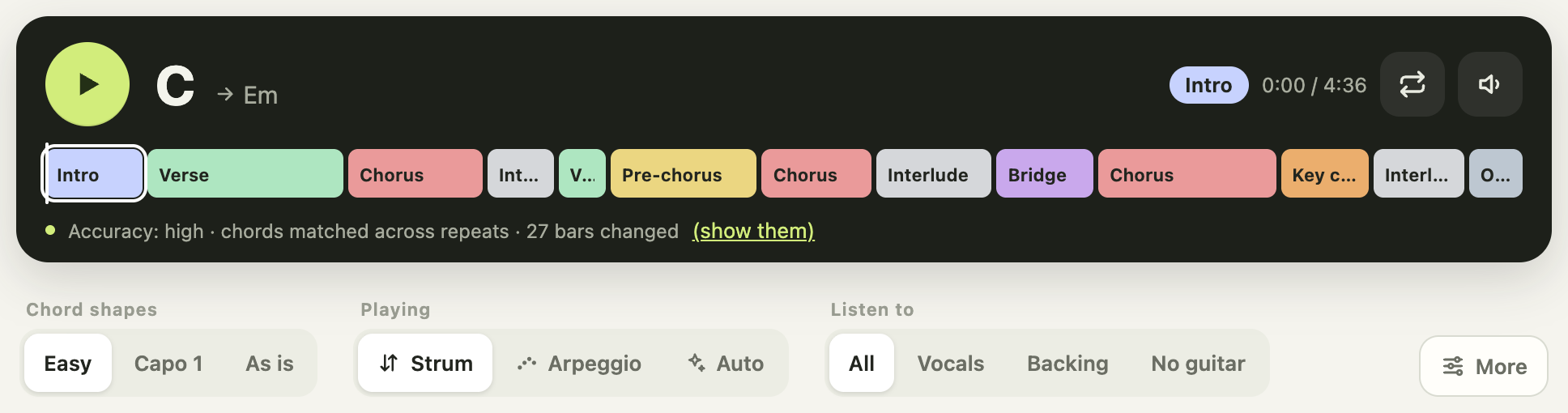
- When it is done, the line reads “Accuracy: high · chords matched across repeats · N bars changed (show them)”, and the TAB shows the Match repeats reading. “show them” marks the changed bars with a red dot.
- Under “Analysis” in the panel that “More” opens, you can switch between “First pass”, “Detailed” and “Match repeats”. The TAB, the guitar playback and the PDF follow your choice. If you picked one yourself before the detailed analysis finished, the tool does not switch for you.
- Keep the page open while it analyses.
Match repeats
When the detailed analysis is done, Match repeats joins the “Analysis” choices under “More”, and the tool switches to it unless you picked another one. It estimates the song’s sections (intro, verse, chorus and so on), lays the parts that come back over each other, and where the same place reads differently, uses the chord that fits the sound. Chords whose major or minor third was not heard (read as sus2) are settled to the chord that fits the key around them. Bars that jar, such as one chorus with a different chord from all the others, become fewer.
- The chords are chosen from what the detailed analysis read. No new chords are made up.
- The “More” panel explains each reading and shows how many bars changed; “show them” marks those bars with a red dot.
- Some roots change, and some sevenths and the like become plain chords. Listen along with the song, and switch back to “Detailed” under “More” if it doesn’t sound right.
- Bars with only the voice (no chord) are left as they are. It does not appear for very short songs or songs without singing.
- It runs on fixed rules inside your browser, with no AI: the same song always gives the same result.
The “More” panel also has a checkbox that tidies the chords to fit the key, volume sliders for each part, and “Guitar out of sync with the song? (bar lines)”.
Choosing chord shapes
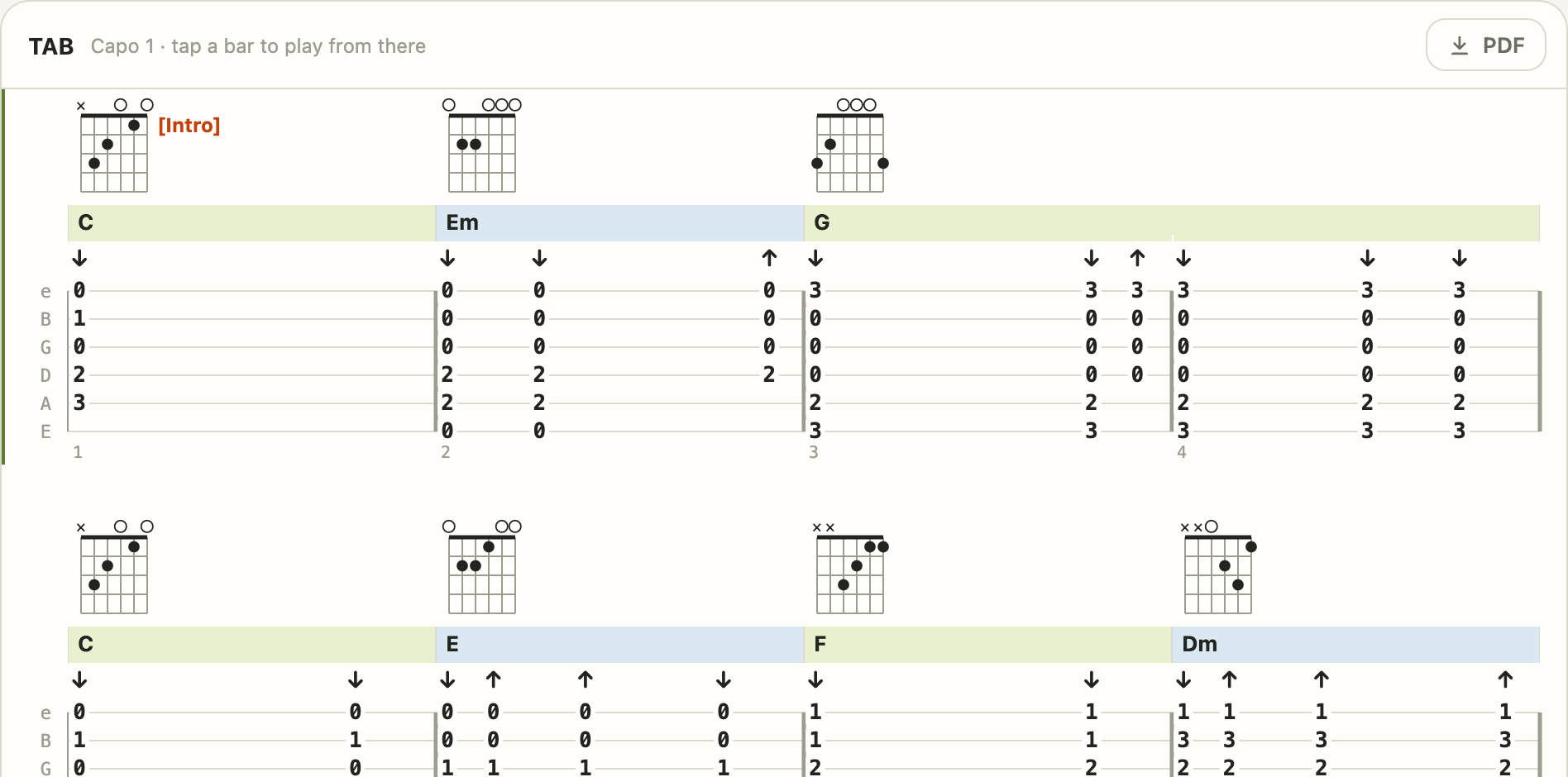
Played as analysed, a song may have lots of sevenths, slash chords and barre chords. “Chord shapes” offers easier ways to play it.
Easy: only major and minor chords, mostly open chords within the first 5 frets. Sevenths, sus chords, slash chords and the like become their plain major or minor chord, so it sounds simpler than the original. It is the view you see first, since the tool is meant for beginners. The capo position is chosen for you.
Capo N: shown when a capo makes the song easier to play. The sound stays the same, in easier shapes. TAB numbers are frets counted from the capo.
As is: the chords exactly as estimated.
Choosing how to play
“Playing” sets how the TAB and the synthesized guitar play the chords. The PDF follows your choice.
Strum: the chords are strummed; how often follows the song’s loudness.
Arpeggio: the chord is picked one string at a time, on eighth notes (bass, 3rd, 2nd, 3rd, 1st string …). Good for quiet songs and ballads.
Auto: the quiet parts of the song are picked and the loud parts strummed. After the detailed analysis, a “per part” link appears next to the “Playing” heading. It opens one chip per estimated section (intro, verse, chorus and so on), each with a colour mark, the part’s name and an icon for how it is played (↓↑ for strum, dots for arpeggio). Click a chip to switch that part between strum and arpeggio; the chorus chip switches every chorus in the song. “Back to auto” undoes your changes.

Playing along with the song
Press play and a synthesized guitar plays the TAB on top of the original song. The player bar shows the chord sounding now in large letters and, after an arrow, the next chord, along with the current part (chorus and so on) and the time.
- Volume: the volume button opens sliders for “Original” and “Guitar (TAB)”. Turn the original down and play your own guitar over it.
- Loop: the 🔁 button repeats the current part. Press it again to stop.
- Song sections: the coloured bar under the player shows the estimated sections and is also the position bar. Parts already played fade; click a part to play from there. Press the current part’s name (Chorus and so on) in the player bar to open a list of parts with large buttons and jump to one (handy on a phone, where the bar’s parts are small).
- On a computer the player bar stays at the top while you scroll. On a phone it floats at the bottom of the screen (and the accuracy line is a dark card under the song title).
After the detailed analysis, “Listen to” lets you choose “All”, “Vocals”, “Backing” or “No guitar”. The volume of each part can be set under “More”.
- “No guitar” lets you play the guitar part yourself in place of the original’s.
- “Backing” turns the voice down so the chords are easier to hear.
If the guitar sounds out of step with the song, press “More” and open “Guitar out of sync with the song? (bar lines)”.
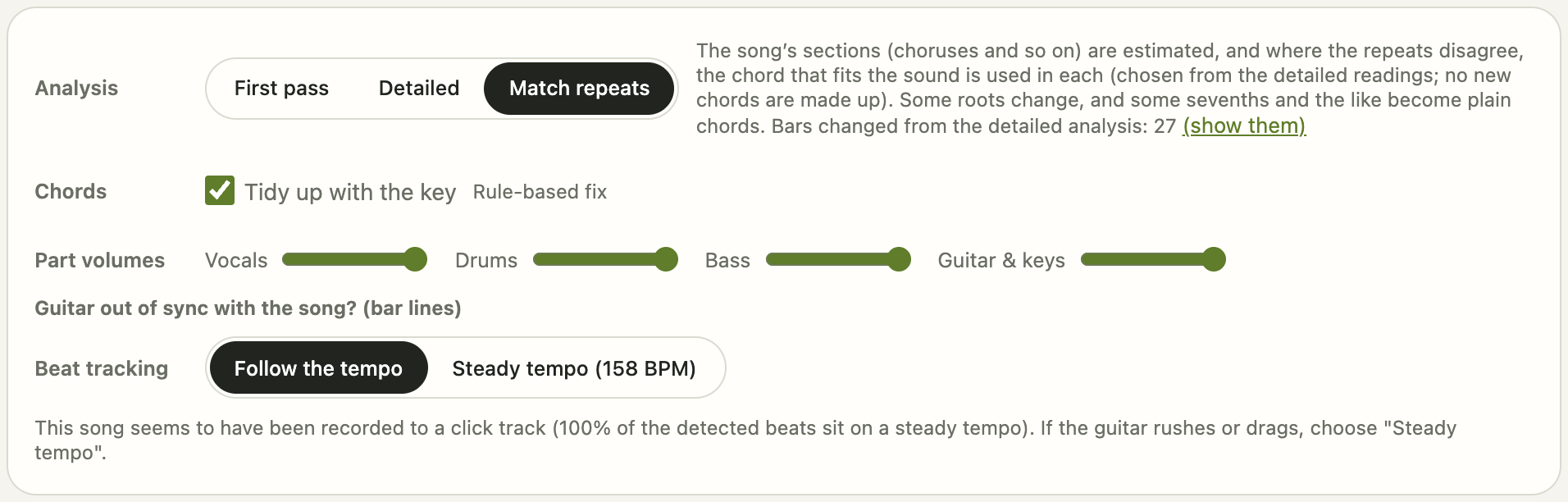
- Usually “Follow the tempo” is right.
- When opened, it shows how closely the song sits on a steady tempo. For a song that seems recorded to a click track, if the guitar rushes or drags, try “Steady tempo”.
- With “First pass” chosen under “Analysis” in “More”, open “Chords” below the TAB: “Compare with the steady beat” there shows how the chords change with the other way of tracking the beat.
Saving
- TAB as PDF: press “PDF” next to the TAB heading. Print it and put it on your music stand.
- Chord sheet as text: open the chord sheet below the TAB and press “Save as text”, or copy it to paste straight away. Use it for notes or for pasting into other apps.
“Chords” below the TAB opens a list of the chords. Saved files are named after the song title (see the next section).
Title and recent songs
At the top of the result screen are the song title and the key, BPM, capo and number of bars. Tap the title to rename the song; the name is used for the PDF and text file names. To open a different song, press “+ Another song”.
Files you open and songs you record are kept in “Recent songs” in this browser, up to 12 songs. They are stored only inside this browser (IndexedDB) and never sent anywhere.
- Right after a new song is analysed, a line says it was kept in this browser’s recent songs and not sent anywhere. If you don’t want it kept, press “Don’t keep”.
- The start screen lists your recent songs. Tap one to reopen it in a couple of seconds, with its title and the detailed analysis’s chords.
- × removes a song.
- To use “Listen to” on a reopened song, press “Split parts” in the accuracy line to separate the parts again.
An example session (Goodbye To Spring)
These are the steps tried with “Goodbye To Spring” by Josh Woodward, a song free to use under Creative Commons. You can download it from his site.
- Open the downloaded MP3 with “Open a song file”. Next to the title the tool showed key F and 120 BPM. (Josh Woodward’s own chart is in B♭: the key estimate can pick a neighbouring key. The chords are read separately, bar by bar.)
- Choose “Easy” under “Chord shapes” to get the flow of the chords first. For this song it gave capo 3 with D-shape chords.
- Press “✦ Improve accuracy”. When it finishes, the TAB shows the Match repeats reading, so the chords agree across the choruses and other repeats. Set “Listen to” to “No guitar” and play along with the TAB.
- Repeat a hard part with 🔁. Where something doesn’t sound right, listen again with “Backing” and check by ear.
- Once you can play it, keep it with “PDF” on the TAB.
How the tool’s chords for this song compare with the composer’s own chart is shown on the song-analysis page.
What works well, and what doesn’t
The chord estimates can contain mistakes; in the end, trust your ears. From using it so far:
Songs that come out well
- Songs where the band, guitar or piano backing is clearly audible
- Songs with a mostly steady tempo
- Pop and rock songs where a chord lasts a while
Songs and passages that often go wrong
- Quick runs of passing chords or inversions (chords with a moving bass), common in intros
- Passages that are mostly voice with little backing
- Songs in 3/4 or 6/8, or that change time signature (the tool divides bars as 4/4, so the bars shift)
- Songs whose tempo moves a lot
- Microphone recordings in noisy places
- The key shown can be a neighbouring key (one sharp or flat away) of the real one
If an estimate seems off, use “Improve accuracy”, or set “Listen to” to “Backing”: it makes the right chord easier to find.
Troubleshooting
“The microphone heard almost nothing”
Play the song through a speaker, a little louder. The microphone can’t hear earphones.
“Record what is playing” comes out silent
Check that “Also share tab audio” (for a tab) or “Also share system audio” (for the entire screen) is on in the sharing dialog. Some streaming services protect their audio, and it can’t be recorded.
“The recording is too short”
Play at least 10 seconds of the song before stopping.
“The analysis stopped”
Memory may have run short. Close other tabs and open the song again.
FAQ
Is my song or recording sent anywhere?
No. Loading, recording, analysis and source separation all happen on this page. Songs you open and recordings are kept only in this browser’s “Recent songs” and never sent anywhere. Remove any you don’t want with × on the start screen.
Does it work on a phone?
Yes. On a phone you can open a file or listen with the microphone. “Improve accuracy” (the detailed analysis) needs more memory than phones have, so for now it runs on computers only.
Can I save the separated vocals or backing as files?
No. The separated audio is only used for listening inside the tool and for reading the chords again. What you can save is the TAB as a PDF and the chord sheet as text.
Can I publish the TABs and chord sheets I make?
For your own songs, freely. Publishing or sharing TABs or chord sheets of other people’s songs online may need permission from the rights holders. Please keep it to your own practice.
How does it work, and how accurate is it?
The song-analysis page shows the tool’s first pass and detailed analysis on two Josh Woodward songs, compared with his own chord charts, and explains how each step works.
The screenshots use “Goodbye To Spring” by Josh Woodward (joshwoodward.com), licensed under CC BY 4.0.